Exchange Decks
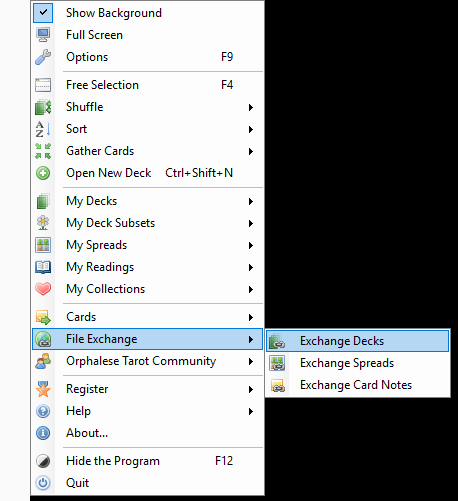
The Deck Exchange is launched by selecting Exchange Decks off the File Exchange menu.
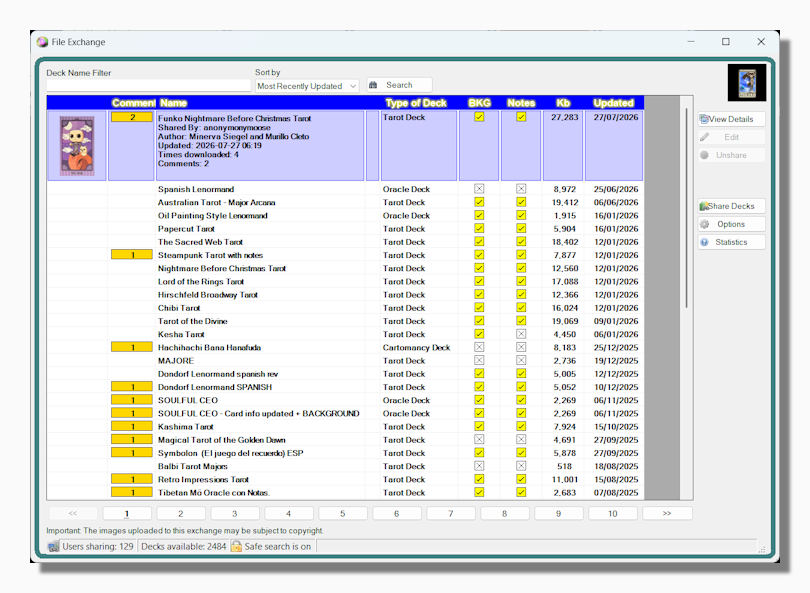
The Deck Exchange is a very popular tool for sharing your own deck creations or downloading decks that have been shared by other users.
Default Search and Filters

When you first open the Deck Exchange window you see the results of a wild card search, i.e. all the available decks (minus any that have been flagged with a warning, see below), sorted by the date they were last uploaded or modified. An alternative display order can be selected in the drop down box. The options are:
- Most Recently Updated
- Deck Name
- Latest Comment
You can also enter some text to search for the name of a deck or part of its name. This is a case-insensitive search.
Display Columns

This screen capture shows all the available columns. Some of them may be hidden depending on your Deck Exchange Options (see below). You can resize the columns by hovering your mouse between two column headers and dragging. If you resize the columns the program will remember your preference for the following occasion.
The Thumbnail Image is the card chosen by the person who shared the deck to best represent it. It is very often but not necessarily the first card in the deck.
The Comments column shows the number of comments that have been left about the deck, either by the sharer or by other users. You can post a comment about any deck in the Exchange by opening the View Details window. This is launched by pressing the View Details button on the right hand side or right clicking any deck in the Exchange and choosing View Details.
Tip: Only registered users are allowed to upload comments.
Tip: The person who shared the deck is also allowed to make their own remarks about the deck, when they first upload it or by Editing their shared deck. These sharer's comments always appear before any other comments. The sharer can also add comments in a regular way to engage in dialog with any one else who comments.
The Name column also contains additional information such as the author, who shared the deck, when it was last updated and how often it has been downloaded.
The Type of Deck can be Tarot Deck, Oracle Deck or Poker Deck (Oracle Deck being just about anything that doesn't fit one of the other two categories).
BKG indicates whether or not the download includes a Background Image.
Notes indicates whether the deck contains LWB type pop-up notes. When you share a deck it is only the Little White Book notes which get shared, your Personal and Universal notes always stay on your own computer.
The Kb column shows the download size in kilobytes to give you an idea of how long it might take to download the deck.
The Updated column tells you either when the deck was originally shared or the date of any subsequent modification.
How to Preview and Download a Deck
You can do this in the View Details window. This is launched by pressing the View Details button on the right hand side or right clicking any deck in the Exchange and choosing View Details. Read more.
How to Share a Deck with Other Users
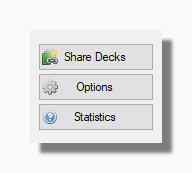
You can do this by pressing the Share Decks button. Read more about sharing decks.
Deck Exchange Options
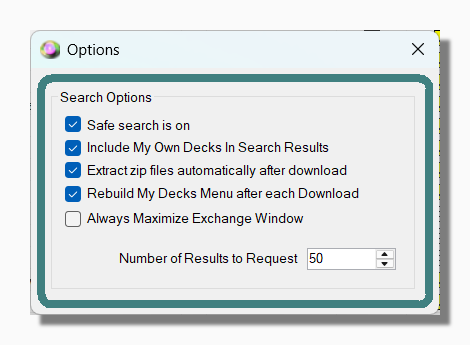
Safe Search By default this option is on. It means that any decks which have been flagged with a warning by the sharer (for example for adult content) are excluded from your search results.
Include My Own Decks in Search Results Determines whether the search results also includes decks you have shared yourself.
Extract Zip Files Automatically The decks you download are in the form of compressed zip files. Normally you would want the program to unpack these files for you automatically so they are ready to be used by the program but you can uncheck this to keep them as zip files (perhaps to scan them with your own virus checker before opening them).
Rebuild My Decks Menu after each Download Before you can start using a downloaded deck it has to be visible in your My Decks list, and that means you need to either refresh the My Decks list or let the program do it for you automatically each time you download. This can take a few seconds if you have several hundred decks in your collection so unchecking this option is a good idea if you have a log of decks and you are going to download and install several more in a single session, you can refresh the menu manually yourself just once at the end of the process.
Tip: If you find you have so many decks that building the menu is taking too long (either when downloading or at start up) then consider using the Load on Demand option on some of your deck folders.
Always Maximize Exchange Window Lets you always use the Deck Exchange maximized to its fullest size.
Deck Exchange Statistics
Click on this button to connect to a web page showing statistics about the most popular decks and the most prolific uploaders.